Welcome to LakPage
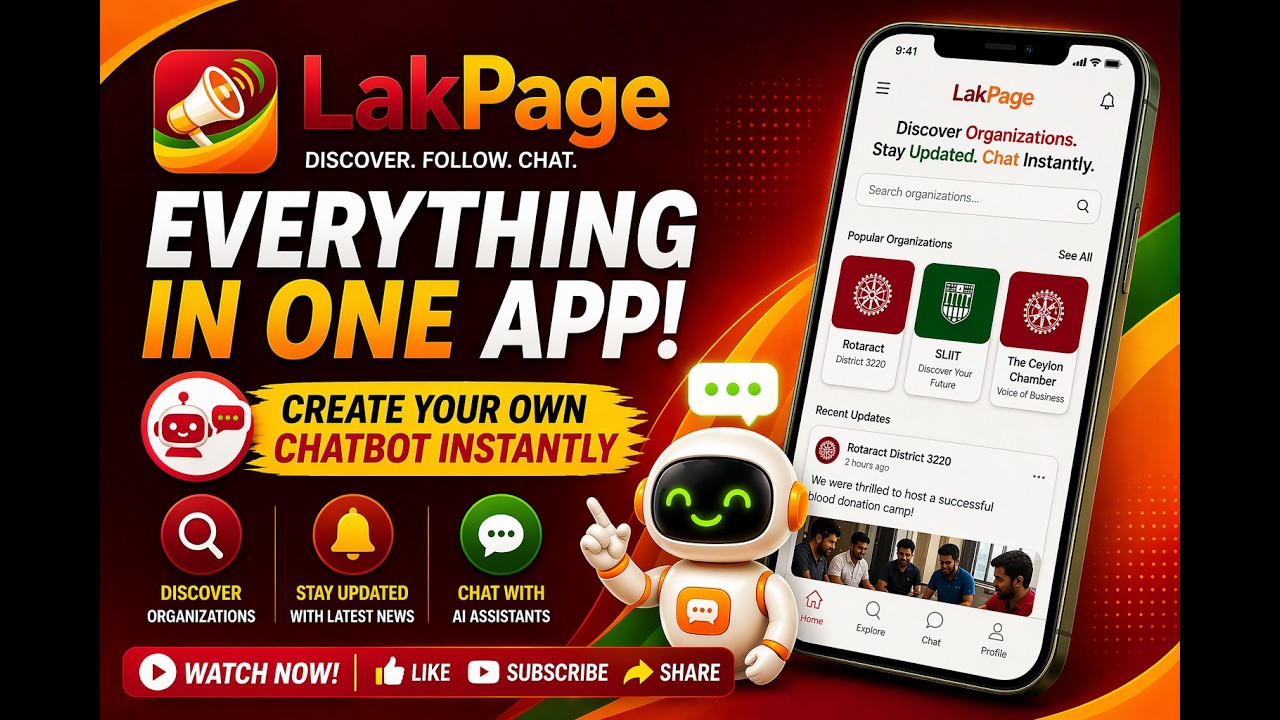
🔎 Explore Pages
Find and follow businesses, services, and communities. Stay updated with their latest posts, offers, and announcements.
📝 Posts & Updates
Pages share updates just like a social feed — promotions, news, job vacancies, events and more.
💬 Chat with Pages
Every page can enable a built-in AI chatbot. Ask questions instantly, get automated replies, and connect any time of day — in your preferred language.
🔗 Share Chatbot Directly
Pages can share a direct chatbot link with customers — paste it in WhatsApp, social media or print as a QR code for easy access.
🌐 Embed Chatbot on Your Website
LakPage provides a ready-made embed code (iframe) so pages can integrate their chatbot directly into their own websites — no coding experience required.
📱 WhatsApp Integration
Connect your business WhatsApp number so customers can message you on WhatsApp and get instant AI chatbot replies — 24/7, in their own language, like talking to a real person.
🏢 For Businesses
Create your page profile, engage with customers, and automate responses using our chatbot tools.
Install LakPage on Your Phone
LakPage is available as a free mobile app for iPhone, iPad and Android. Tap a badge below to open the relevant store and install.

Sign in on the mobile app with the same Google or Apple account you use on the web — all your posts, pages and chats stay in sync.
Getting Started
LakPage uses Google Sign-In and Apple Sign-In. There is no email/password login — we never store a password for you.
- On web and on iOS, you can sign in with Google or Apple.
- On Android, sign in with Google.
- On your first sign-in, you'll be asked to complete a short profile.
From the Profile tab you can edit:
- Display name and profile photo — how others see you.
- Bio — a short introduction shown on your profile and in the left sidebar on the web.
- Country, province and city — helps suggest local pages.
- Optional fields like hometown, workplace, university and interests.
LakPage is available as a web app and as a mobile app for iOS and Android. Your account works across all of them — sign in with the same Google or Apple ID and you'll see the same content everywhere.
Open the web app at https://lakpage.com.
Pages
Pages are public pages that represent real-world entities — schools, businesses, government offices, clubs, religious places, NGOs and more. Each page has:
- A profile page with photo, cover banner, description, category and hashtags.
- Contact details: phone numbers, email, website, address, social links.
- Opening hours for each day of the week and special holidays for one-off closures or exceptions.
- A list of posts and members (owners and admins).
- An optional AI chatbot trained on the page's own documents.
- Sign in and open your Profile.
- In the My Pages section, tap + Create a Page.
- Fill in the page name, description, category and (optionally) a photo and cover banner.
- After creating it, open it and use Edit Page to add contact details, opening hours, special holidays and hashtags.
You can create and manage more than one page from the same account.
As a page admin, open Edit Page to configure when you're open:
- Opening hours: set an open/close time (or mark as closed) for each day of the week.
- Special holidays: add one-off dates (e.g. public holidays) that override the regular weekly schedule. A holiday can be marked as closed, or as open with different hours.
Visitors see these on the page profile, and the AI chatbot uses them to answer questions like “are you open today?”.
- Open the Discover tab to browse pages.
- Tap a page to view its profile, posts and contact info.
- Tap Follow to add its posts to your home feed.
- Tap Share to copy a public link that works even for people who don't have an account.
Each page has:
- An owner (the person who created it).
- Optional admins who can edit the page, post, and manage the chatbot.
- Members who are part of the page.
Only owners and admins can edit details, enable the chatbot, and moderate posts.
Only the owner can add admins. Admins share the work of running the page — they can edit the profile, create and delete posts, and manage the chatbot.
- Open your page and go to the Info tab.
- Scroll to the Team section and tap Add admin.
- Enter the full email address the user signed up with, then tap Find. LakPage checks that the user exists before letting you continue.
- Once the user's profile card appears, type ADD in the confirmation box and tap Add as admin.
The added user immediately gets a notification (“You’re now an admin of <page>”) — visible on the notification bell and as a push notification on mobile.
Notes:
- The email must match the address on the user's LakPage account exactly. If you get “No user with that email”, ask them to sign up first.
- A user can only hold one role per page (owner, admin or member). If they're already a member, you'll see “Already a <role>”.
- There's no hard limit on how many admins a page can have.
Only the owner can remove an admin. Admins can't remove other admins.
- Open your page → Info tab → Team section.
- On the admin's chip, tap the small × (or Remove button on web).
- Type DELETE to confirm, then tap Remove.
The removed user loses admin access immediately but keeps their posts (as a history record). They're not notified of the removal.
If you're an admin who no longer wants to manage a page, you can leave on your own — no need to ask the owner.
- Open the page → Info tab → Team section.
- Tap Leave page.
- Type LEAVE to confirm, then tap Leave.
Your posts stay with the page; you just lose admin rights.
Owners can't leave — the owner must either transfer the page, delete it, or promote someone else first. (Transfer of ownership is handled on request by contacting support.)
Photo Gallery
Every page has a Gallery where you organise photos into named folders — a product catalogue, a menu, an event album, room types, before/after shots, and so on. Galleries are shown on the page profile, and the photos can also be surfaced by your AI chatbot when visitors ask to see pictures.
As an owner or admin, open your page and tap Edit Page, then scroll to the Gallery section. (Visitors see a read-only Gallery tab on the page profile.)
Everything below — creating folders, adding photos, captions and descriptions — is done from this Gallery area on the Edit Page screen.
- In the Gallery section, tap New Folder and give it a folder name (e.g. “Menu”, “Rooms”, “2026 Sports Day”). Names can be up to 100 characters.
- Open the folder and tap Add Images to upload photos into it.
- Repeat to create as many folders as you need.
You can create up to 10 folders per page, with up to 10 images in each folder. To reorganise, use the folder's … menu to Rename or Delete a folder, and delete individual images from inside a folder.
Each photo has two optional text fields, and they do different jobs:
- Caption (up to 50 characters) — shown on top of the image when someone opens it in full view. Use it for a short label like “Deluxe Room” or “LKR 1,200”.
- Description — not shown on the image. It's read by the AI chatbot when a visitor taps “Ask about this” on the photo, so the bot can answer questions about it. Put the details here: ingredients, sizes, price, availability, materials, etc.
So the caption is for people glancing at the photo; the description is the knowledge the chatbot uses to talk about it.
Two ways — both reuse the same folders you created here:
- Page-wide chatbot: pick which folders the chatbot may show in Manage ChatBot. See AI Chatbot for Pages.
- A specific post: attach a gallery to a post on the Create / Edit Post screen so the post's chatbot shows those photos. See Per-Post Chatbot.
In either case, a visitor can tap “Ask about this” on any photo to ask the chatbot about that one image.
Posts & Feed
- The home feed shows posts from pages you follow, plus personal feed posts shared by your friends and friends-of-friends.
- You can open any post to view images, read the full text, comment and react.
- Unfollow a page at any time to remove its posts from your feed.
You can post to your own home feed without owning a page — like a status update shared with the people you know.
- On the home screen tap Create Post (the composer at the top, or the + / pencil button).
- If you don't have any pages, you go straight to the personal post composer. If you do, choose Personal home feed (or pick a page to post there instead).
- Add text, photos, a video, or a link. Toggle comments and sharing as you like.
- Set the audience before posting — see below.
Every personal feed post has an audience you control, from the composer (and you can change it later by editing the post):
- Friends of friends — your friends and their friends can see it (the default, for wider reach).
- Friends only — only people you are friends with can see it.
Personal feed posts are never public — only your friend circle sees them, and shared links don't generate public previews.
Found a great post on a page? You can re-share it to your own home feed so your friends see it:
- Tap the Share icon on the page post, then Share to my home feed.
- Add an optional caption and choose the audience (Friends of friends, or Friends only).
- It appears in your feed as “you shared a post” with the original shown inside — tap View original post to open it.
- Views on your shared copy also count toward the original post, so the original always shows the total views across every share.
- Open the Profile screen and tap My Posts (just above My Pages).
- It lists everything you've posted in one place — your page posts, your personal feed posts, and posts you've shared — newest first.
- From here you can open, edit or delete your own personal posts. Deleting a post also removes its photos and videos.
If you're an admin of a page (or a member, depending on the page's settings), you can create posts on behalf of it:
- Open the page and tap + New Post.
- Add a title and text content.
- Attach photos or a YouTube link.
- Publish — your followers will see it in their feed.
- Like posts you enjoy.
- Comment to join the conversation.
- Share a post using its public link.
- Owners and admins can edit or delete posts from their own page.
Friends
Connect with people so you can share personal feed posts and see theirs. Your friend network also powers “friends of friends” reach.
- Open the Friends tab and use Search to find people by name or email.
- Open a person's profile and tap Add Friend to send a request.
- Check People you may know for suggestions — these are friends-of-friends and people near you. The same suggestions also appear in your home feed.
- Tap Add Friend on someone's profile or suggestion card.
- The button changes to Request sent until they respond, and they get a notification.
- You can cancel a pending request from their profile.
- Incoming requests appear in the Friends tab (and you'll get a notification).
- Tap Accept to become friends, or Decline to dismiss it.
- Once you're friends, you'll see each other's personal feed posts according to each post's audience.
- Open a friend's profile and tap the Chat icon to start a private 1:1 conversation.
- Send text and media back and forth in real time.
- All your conversations live in the ChatBot tab (the Chats screen) — your friend chats appear there alongside any chatbot conversations, with unread badges so you don't miss a reply.
- Unfriending or blocking someone clears the chat history on your side.
- Open a friend's profile to Unfriend them at any time.
- Block a user to stop them contacting you and hide each other's content. Blocking also clears your chat history with them.
AI Chatbot for Pages
Pages can enable an AI assistant that answers visitors' questions about the page — opening hours, services, contact details, policies, etc. The chatbot uses the information you provide as its knowledge base.
It supports 20 languages including English, Sinhala, Tamil, Hindi, Chinese, Japanese, Arabic, French, Spanish and more. As a page owner you can configure which language buttons visitors see — see Chat Language Options for details.
- Open your page and tap Edit Page.
- Toggle on Enable AI ChatBot and save.
- Tap Manage ChatBot on the page profile to add content.
By default, your chatbot runs on DeepSeek. If your page serves customers in the European Union, you can switch to a different AI provider from Manage ChatBot → Settings:
- Mistral AI — recommended for EU-facing pages. Mistral is an EU-headquartered provider and processes data within the EU by default, which helps with GDPR alignment.
- OpenAI (GPT-5 nano) — an alternative provider outside DeepSeek, using OpenAI's standard processing.
- DeepSeek — the default provider.
Switching providers doesn't change how your chatbot works — your knowledge base, action triggers (bookings, orders, appointments, owner notifications), and usage stats all continue exactly as before. You can switch at any time; each provider is billed at its own token rate, shown alongside every conversation in your page's Usage tab.
When Enable AI ChatBot is turned on, you can also switch on Enable image search (users can attach images in chatbot) in Edit Page. This lets visitors upload a photo directly in the chat window and ask questions about it.
How it works:
- A visitor taps the image icon in the chatbot and picks or takes a photo from their device.
- The image is uploaded securely to LakPage. The AI analyses the photo (colours, text, brand markings, product type, condition, and other visible attributes).
- The chatbot then uses that description together with your knowledge base to give a relevant, personalised reply — for example, identifying a product from a photo, checking a dress style against your catalogue, or answering a question about an item the visitor photographed in your shop.
Viewing visitor images as the page owner:
- In the Chats screen (web & mobile app), visitor-sent photos appear as thumbnails in the conversation transcript. Tap a thumbnail to view it full-size.
- In the admin portal under Manage ChatBot → User History, each conversation row shows the image alongside the AI's analysis, so you can see exactly what the visitor shared and how the bot responded.
Good to know:
- Image analysis uses a small number of extra chatbot tokens per photo (typically a few cents worth per image).
- If Enable image search is off, the image attachment button is hidden from visitors — they won't see the option at all.
- You can turn this on or off at any time in Edit Page without affecting any other chatbot settings.
You control how the chatbot entry button looks on your page — and, by default, on your posts too. Open your page, tap Edit Page, and find the chatbot section:
- Button label — the text on the button. The default is “Contact <your page name>”. Type your own wording (up to 50 characters). Use the
{page}token to drop in your page's name automatically — e.g. “Contact {page}” shows as “Contact Pizza Hut”, and “Message {page}” becomes “Message Pizza Hut”. - Icon — pick the icon shown on the button from a set of 25 icons (chat, help, info, support agent, shopping, storefront, and more).
- Colour — choose an accent colour for the icon, or leave it on the default theme colour.
These settings apply to your page's own chatbot button and to the button on each of your posts — unless a post sets its own (see Per-Post Chatbot).
You can give the chatbot knowledge in three ways:
- Upload documents (PDF, DOCX, TXT, HTML). The chatbot extracts the content and automatically turns it into a structured knowledge base article.
- Add from URLs — paste one or more public web-page addresses (your own Help & Support page, Privacy Policy, Refund Policy, a services page, etc.). The chatbot fetches each page, reads the full text, and turns it into a knowledge-base article — one URL at a time. You can add several URL rows at once and hit Process URLs; each row shows its own progress and turns green when done. A long page is automatically split into several knowledge-base entries (“Part 1”, “Part 2”, …) so nothing is lost. Once a URL is processed you can keep it up to date — see Keeping URL content up to date below. Dynamic pages that load their content with JavaScript (single-page apps, some modern help centres) may come back empty — plain articles, policy pages and static HTML work best.
- Add a knowledge base entry manually — write a short article with a title, summary and content.
The chatbot also automatically uses the page's opening hours, special holidays and contact details as facts, so visitors can ask “are you open tomorrow?” and get the right answer.
When you add a knowledge-base article from a URL, it captures the page as it was at that moment. If that page later changes (updated prices, new policies, revised FAQs), you can have the chatbot re-read it — either on demand or automatically. Open your page and tap Manage ChatBot → Documents; each processed URL now shows refresh controls.
Refresh now (manual):
- Tap Refresh now on a URL document. The chatbot re-fetches the page, rebuilds its knowledge-base article(s) from the latest content, and replaces the old ones — so if the page grew or shrank, the number of “Part 1/2/…” entries updates to match.
- The rebuild runs in the background; the document shows Refreshing… and updates on its own when finished. Your existing entries keep working in the meantime.
- If the page can't be read on a given attempt (it was down, or returned no text), your existing entries are kept and a Refresh failed note explains why — nothing is lost.
Automatic refresh:
- Turn on Auto-refresh for a URL and choose how often, from 1 to 30 days.
- Refreshes run overnight, between 2 AM and 4 AM Sri Lanka time, so the work happens off-peak and visitors are never interrupted.
- Each URL shows its Last refreshed time (and whether it was Manual, Auto or the Initial processing) and, when auto-refresh is on, the Next refresh date.
Good to know:
- Each refresh re-runs the page through the AI, so it uses chatbot tokens just like the first time — keep a small token balance if you schedule frequent auto-refreshes. If the balance is too low when an automatic refresh is due, it's skipped and retried at the next interval (your existing entries stay live).
- Deleting a URL document now also removes the knowledge-base entries it created, so the chatbot won't keep answering from a page you've taken down. (The same applies to deleted uploaded documents.)
- Refresh applies to URL sources only — uploaded files (PDF, DOCX, …) have no live web page to re-read, so they show no refresh controls. To update an uploaded file, delete it and upload the new version.
Owners and admins can review all chatbot conversations in the admin view: filter by date, user, or keyword to see what visitors are asking and improve the knowledge base accordingly.
Conversations where a visitor made a concrete request (reservation, order, appointment, etc.) are highlighted in red with an Action taken badge, so you can scan a long transcript and jump straight to the turns that need follow-up.
Replying inside the chatbot window itself is no longer available. Instead, you reach a visitor through a normal direct chat (or their contact details). How you do that depends on whether the visitor was signed in when they chatted:
If the visitor was signed in to LakPage:
- Open the conversation (from Manage ChatBot → User History, or the My ChatBot Actions list on your Profile). The visitor's name appears at the top of the chatbot conversation window.
- Tap the visitor's name to open their profile.
- On their profile, tap the chat icon at the top to start a direct chat with them — a normal one-to-one LakPage conversation, separate from the chatbot.
This is the way to follow up with a signed-in visitor — for example to confirm a booking, answer a question the bot couldn't, or send more details.
If the visitor was not signed in (anonymous):
- There's no profile and no direct chat — an anonymous visitor has no LakPage account to message.
- If they gave a name and a phone number or email during the chat (for example when making a request), you can reach them using those details — they appear in the conversation and in the action-request notification email/alert (see below).
- If the contact details they provided are missing or incorrect, there is unfortunately no way for us (or you) to reach that visitor — LakPage has no other way to identify an anonymous user. Encouraging visitors to sign in, or to double-check the phone/email they enter, gives you the best chance of following up.
When a visitor uses the chatbot to make a concrete request — a booking, order, appointment, enrollment, complaint or quote — the chatbot automatically collects the visitor's contact details (name and phone number are required; email is optional) and then notifies the page so you can follow up.
Every owner and admin of the page receives:
- Email — sent to the address on their LakPage account. The email subject shows the request type (e.g. “New Reservation request for Sunset Paradise Resort”) and the body contains a one-line summary plus every detail the chatbot captured (guest name, phone, dates, room type, etc.).
- Push notification on the mobile app — lands in the phone's notification tray; tapping it opens the LakPage notifications screen and the matching entry shows the full details.
- In-app notification in the bell icon — the red badge ticks up in real time. Clicking the notification opens a dialog with the same structured details as the email.
- Sidebar alert (web) — while any action notifications are unread, the profile card in the left sidebar is replaced by a red-bordered “New chatbot requests” panel listing them. Click a row to open the details, or the × button to dismiss one notification (it will still remain in the bell list).
When the chatbot does not notify:
- For general questions, greetings, browsing or FAQ-style enquiries.
- Until the visitor has provided both their name and phone number — the chatbot will politely ask for them first.
- If the same request is summarised again in a follow-up turn (a 24-hour deduplication window prevents double-emailing for the same booking).
- If you've turned the feature off. Open Manage ChatBot → Settings and toggle Notify me when a visitor makes a request. (The toggle is on by default.)
Visitors see a small ✓ The page has been notified note under the bot's reply, so they know their request is being followed up on.
Owners and admins always receive the action-notification email at their LakPage account address. If you also want a shared inbox or a specific team member (reservations desk, accountant, shift manager, …) copied on every notification, you can add them here.
How to configure:
- Open your page and tap Manage ChatBot → Settings.
- In the Notify me when a visitor makes a request card, scroll to Extra notification emails.
- Tap Add email, type the address, and repeat for each extra recipient.
- Click Save to store the list.
- You can add up to 5 extra addresses per page.
- Invalid addresses are rejected immediately — you'll see an inline error before the list is saved.
- If an extra address matches an owner/admin's account email it's automatically de-duplicated — nobody ever receives the same email twice for one request.
- The same 24-hour deduplication applies — a repeated confirmation of the same booking won't trigger another round of emails.
- Extra recipients only receive email; they do not receive push notifications or in-app bell alerts (those require a LakPage account with owner/admin role on the page).
To remove an address, tap the trash icon next to it and click Save. To pause all action notifications across every channel (member emails, extra emails, push, bell), turn the main Notify me when a visitor makes a request toggle off — the extra email list stays saved for when you flip it back on.
The chatbot can show photos from your Photo Gallery when a visitor asks to see pictures (“show me your rooms”, “do you have photos of the menu?”). To enable this:
- Make sure you've created at least one gallery folder with photos (see Photo Gallery).
- Open your page and tap Manage ChatBot.
- Find the Image Galleries section and tick the folders the chatbot is allowed to show.
When a visitor's question is image-related, the bot offers something like “I also have some pictures related to this — want to see them?” and then displays the photos right inside the chat. If you've selected a single folder, its images are shown directly; with multiple folders, the visitor first picks which folder to look in.
On any photo the bot shows, the visitor can tap “Ask about this” to ask about that specific image — the bot answers using the photo's Description (the private field you set on the image in the gallery).
Chat Language Options
You can configure which language buttons appear inside your chatbot window. Visitors tap a language button at the start of the conversation and the chatbot switches to answering entirely in that language — including translating content from your knowledge base. This lets a single chatbot serve customers in multiple languages without any extra setup.
- Open your page and tap Manage ChatBot.
- Go to the Settings tab.
- Scroll to the Chat Language Options card.
- Tap any language chip to toggle it on (highlighted in blue). You can select up to 10 languages.
- Once you've selected at least one language, a Default Language row appears below — tap the language you want to use when a visitor hasn't picked one. The selected default shows a green checkmark.
- Tap Save.
The language buttons appear immediately for every new visitor who opens the chatbot — there's no need to reload or re-publish anything.
You can choose from 20 languages:
🌎 Asian
English, Sinhala (සිංහල), Tamil (தமிழ்), Hindi (हिन्दी), Chinese (中文), Japanese (日本語), Korean (한국어), Malay, Thai (ภาษาไทย), Indonesian, Vietnamese
🌍 European
French (Français), German (Deutsch), Spanish (Español), Portuguese (Português), Russian (Русский), Italian (Italiano), Dutch (Nederlands), Turkish (Türkçe)
🌞 Middle East
Arabic (العربية)
When a visitor opens the chatbot and does not tap a language button, the chatbot uses your configured default language to reply.
For example: if you set English, Sinhala, and Tamil as your three languages and mark Sinhala as the default, a visitor who skips the language prompt will receive answers in Sinhala. As soon as they tap “English” or “தமிழ்”, all subsequent replies switch to that language for the rest of their session.
If you haven't set a default, the chatbot auto-detects the visitor's language from their message and tries to reply in kind.
When a visitor opens your chatbot for the first time (or starts a new session), a language selection prompt appears just below the welcome message — a row of buttons, one for each language you've configured:
- They tap their preferred language. The chatbot confirms the choice and replies in that language from then on.
- The language choice is saved for the rest of that browser session (or tab). If they open the chatbot in a new tab, they can pick again.
- If you've only configured one language, no picker is shown — the chatbot uses that language automatically.
Once a language is selected, the AI chatbot receives a strict instruction to answer entirely in that language — even if your knowledge base documents are written in English. The AI translates facts, opening hours, policies and Q&A content on the fly before forming the reply. Proper nouns, brand names, URLs and technical codes are kept in their original form.
Languages with their own scripts (Sinhala, Tamil, Hindi, Arabic, Chinese, Japanese, Korean, Thai) are answered in the correct native script, not romanised (transliterated) text. For example, a Sinhala-language reply uses සිංහල script, not “Singlish”.
If you leave the Chat Language Options empty (no languages selected), the chatbot auto-detects the visitor's language from their message and replies in the same language. This works well for single-language audiences; explicitly setting languages is recommended when you serve a multilingual customer base because it gives visitors a clear choice rather than relying on auto-detection.
Not directly. The language buttons only appear in the web/app chatbot window. For WhatsApp and Messenger, the chatbot auto-detects the language of the incoming message and replies accordingly, following the same translation logic. The default language setting does also apply as a fallback there when the auto-detection is unclear.
Per-Post Chatbot
Every post can have its own context-aware chatbot conversation. When a visitor opens the chatbot from a specific post (instead of the page), the bot is given that post's title, type, hashtags, content and the owner's private notes as primary context — so it can answer detailed questions about that post, while still answering general questions about the page.
It's the same AI chatbot you've enabled for your page — but pre-loaded with one specific post's details. A visitor reading your “Weekend Repair Special” post can tap the chatbot icon on that post and immediately ask “what time does the special end?” or “does this cover screen repairs?”, and the bot replies using the post body plus any private notes you've added.
It does not replace the page-wide chatbot — both work side by side. Each post-scoped chat is its own thread (separate history) so a question on Post A doesn't leak into Post B's conversation.
The post-scoped chatbot still has full access to the page's knowledge base, opening hours, contact details, etc., so visitors can also ask general page questions in the same chat.
On every post that has the chatbot enabled, you'll see a small chat icon (robot face) in the top-right of the post card, next to the … menu — on the home feed, the post detail page, and the page profile.
Tapping it opens the chatbot with the post pre-loaded. A thumbnail + title strip appears at the top of the chat window so the visitor can see exactly which post the bot has context on. Tapping that strip opens the full post.
The icon is hidden when either the post or the whole page has chatbot disabled.
The toggle lives on the Create Post and Edit Post screens, alongside “Enable comments” and “Allow sharing”:
- Open New Post (or edit an existing post via the post's … menu → Edit).
- Scroll to the Settings card at the bottom of the form.
- Find Enable chatbot for this post and toggle on or off.
- Tap Save (or Post for new posts).
The toggle is on by default for new posts, so you only need to touch it if you want to disable the chatbot on a particular post (e.g. a one-off announcement that doesn't need follow-up questions).
Important: the per-post toggle has no effect when the page-wide chatbot is disabled. The page-wide setting is the master switch — turn that off and no chatbot appears on any post.
When the chatbot is enabled for a post, you can tailor the button visitors tap to chat about it. The controls appear on the Create Post / Edit Post screen, just under the chatbot toggle:
- Button text — the default is “Need more information?”. When you create a post the field is pre-filled with a suggestion — keep it, or type your own (up to 50 characters). The
{page}token works here too. - Icon and Colour — pick from the same set of icons and colours offered for the page chatbot.
Leave any of these blank and the post falls back to your page's chatbot button style, and finally to the platform default. So you only need to set them when you want a particular post to stand out (e.g. “Order this now” on a promotion).
The special note is a private hint you write for the chatbot to read when answering questions about this post. It appears as a multi-line text field on the Create / Edit Post screen, only when the chatbot toggle is on.
Use it to give the bot extra context that doesn't belong in the public post body but helps it answer accurately. Some examples:
- Pricing details — “Standard package starts at LKR 8,500. Group discount of 10% available for 5+ guests.”
- Behind-the-scenes info — “Event capacity is 60 people max. Vegetarian menu available on request.”
- Internal codes / SKUs — “Reference SKU AP-2026 when asked about availability.”
- Operational details — “Repairs take 2–3 working days. Express service +30%.”
- Disclaimers — “Mention that the offer excludes public holidays.”
The field accepts up to 2,000 characters. Leave it empty if the post body already says everything the bot needs.
You can attach one or more gallery folders to a post so the post's chatbot can show those photos when a visitor asks about images while reading it.
- On the Create Post / Edit Post screen, make sure Enable chatbot for this post is on.
- A Chatbot image gallery (optional) field appears (only when the chatbot is on and the page has at least one gallery folder).
- Pick the folder(s) whose photos the bot should offer for this post, then save.
When a visitor opens this post's chatbot and asks to see pictures, the bot shows the linked photos — and, as everywhere else, they can tap “Ask about this” on a photo to ask about that single image. If you don't attach a gallery, the post chatbot simply answers in text and falls back to whatever the page-wide chatbot is allowed to show.
No. The special note is strictly private. It is:
- Never shown in the post body, comments or feed listing.
- Stripped from the post detail API response when the requester is anyone other than the post author or a page owner / admin.
- Read by the chatbot as part of its system prompt, with explicit instructions never to quote, paraphrase or attribute it (“the owner says…”) — the bot speaks the relevant facts directly as if they were natural answers.
For example, if your special note says “Standard package is LKR 8,500” and a visitor asks “what's the price?”, the bot will answer “The standard package is LKR 8,500.” — not “The owner's note mentions LKR 8,500.”
The note is visible only to you (the post author) and to page owners / admins, and only when loading the post for editing.
You'll find a Share chatbot for this post option in the post's … menu. It's visible only to owners and admins of the page, and only when chatbot is enabled on both the post and the page.
On the web:
- Open your page's profile page and go to the Posts tab.
- On the post you want to share, tap the … menu — you'll see a Share chatbot for this post entry.
- It opens the same Chatbot Link & Embed Code dialog as the page-wide share, but with all three URLs scoped to this post (a small banner at the top reminds you which post the link is bound to).
- Copy any of the three: Direct Link, Popup Window Link, or Embed Code (iframe).
On the mobile app: same flow — the … menu's Share chatbot for this post opens a bottom sheet with all three options. The Direct Link section also has a Share button that fires the system share sheet (WhatsApp, SMS, email, …) so you don't have to copy & paste.
When anyone opens the shared link, the chatbot loads pre-grounded on the post: a thumbnail + title strip appears at the top of the chat, the welcome message switches to “You can ask anything about this post.”, and every reply considers the post and your private notes.
It's the same three artefacts as the page-wide share, but each URL has a ?post_id=... appended:
Direct Link
Best for sharing on social media, WhatsApp, email or QR codes — https://lakpage.com/chat/<page>?post_id=<post>. Opens a full-page chatbot pre-loaded with the post.
Popup Window Link
An HTML <a> snippet that opens the post-scoped chatbot in a 420×650 popup. Drop it into your existing website's “Chat about this offer” button.
Embed Code (iframe)
An <iframe> snippet that embeds the post-scoped chatbot directly inside a page on your site — perfect for product or event landing pages.
The chatbot still answers general page questions in any of these contexts — the post just becomes the primary subject of the conversation.
All per-post conversations land in the same User History view as the page-wide chatbot. As an owner or admin:
- Open your page and tap Manage ChatBot.
- Switch to the User History tab.
- Conversations triggered from a specific post show a small post chip next to the user name — with the post title (or “About a post” if the post has no title).
- Tap the chip to jump to the original post detail.
You can use the existing date and search filters to narrow the list. Conversations from the page-wide chatbot have no chip — that's how you tell them apart at a glance.
If a visitor's question triggered an action notification (a booking, order, complaint, etc.), the row also shows the red Action taken badge as before — both badges sit on the same line so post-driven action requests are easy to spot.
Yes. When a visitor's per-post chat triggers an action notification (reservation, order, appointment, complaint, …), the post is included in every channel:
- Email — a “Related to post: <title>” link appears between the request summary and the captured details, so you can jump straight to the post that prompted the request.
- Push notification — the body is prefixed with
[Post Title]so you can tell at a glance which post triggered the alert without opening the app. - In-app bell notification — the same prefix appears in the body, and the dialog that opens when you tap the row shows the post id and title.
If the chat was opened from the page-wide chatbot (not a post), the post line is simply omitted — existing page-wide alerts look exactly as before.
Deleting a post does not wipe its chatbot history or owner-notification audit trail — both are preserved. The conversations remain in your User History, just with the post chip removed (the link target is gone). Action notifications keep their structured details so you can still follow up on bookings or orders made before the post was removed.
Chatbot Link & Embed Code
As a page owner or admin, you can share your AI chatbot with anyone — even people who don't have a LakPage account. This lets your customers, visitors or members get instant answers from your chatbot right from your own website, social media or anywhere you share a link.
Looking to share the chatbot for one specific post? See Per-Post Chatbot — same three options (Direct Link / Popup / Embed) but pre-loaded with that post's content as primary context.
If you're an owner or admin of a page with the chatbot enabled:
- Open your page's profile page.
- You'll see a Chatbot Link button among the action buttons (next to Edit, Chat, etc.).
- Tap it to open a dialog with three sharing options: Direct Link, Popup Window Link and Embed Code.
On the mobile app, the same button opens a bottom sheet where you can copy or share the link.
What it is: A simple web address (URL) that opens a full-page chatbot in any web browser. It looks like:
https://lakpage.com/chat/your-page-id
What you can do with it:
- Share on social media — post it on Facebook, Instagram bio, Twitter/X, LinkedIn, or any social platform. Anyone who clicks it can start chatting with your page's AI assistant instantly.
- Send via messaging apps — share it on WhatsApp, Viber, Telegram or SMS. Your customers can tap the link and ask questions right away.
- Print on materials — convert the link into a QR code and add it to business cards, brochures, posters or menus. Customers scan the QR code with their phone camera and the chatbot opens.
- Add to email signatures — include a “Chat with us” link at the bottom of your business emails.
- Use as a “Contact Us” link — instead of a contact form on your website, link directly to the chatbot.
How to use it: Simply tap the Copy button next to the Direct Link in the dialog. Then paste it wherever you want to share it. No technical knowledge needed — it's just a link, like sharing a YouTube video.
What it is: A small piece of code (HTML) that you can add to your website. When a visitor clicks it, the chatbot opens in a small popup window (like a chat widget) instead of navigating away from your website.
The popup window is compact (420×650 pixels) — about the size of a mobile phone screen — so it feels like a natural chat experience that floats alongside your website.
The code looks like this:
<a href="https://lakpage.com/chat/..." onclick="window.open(this.href,'LakPageChat','width=420,height=650');return false;">Chat with us</a>
What you can do with it:
- Add a “Chat with us” button to your website — visitors click it and a small chat window pops up. They can chat while still seeing your website in the background.
- Works great as a support button on any page of your website — product pages, FAQ pages, contact pages, etc.
- The visitor stays on your website — when they close the chat window, they're right back where they were.
How to use it (step by step):
- Copy the code from the Popup Window Link section in the dialog.
- Open your website's HTML editor (or ask your web developer to help).
- Paste the code wherever you want the “Chat with us” link to appear — for example, in your page footer, sidebar, or header menu.
- Save and publish your website. That's it!
Don't have a website? No worries — you can use the Direct Link instead and share it on social media or messaging apps.
What it is: A piece of code that lets you place the chatbot directly inside your web page as part of the page content — not as a popup, but as a visible chat box embedded within your site.
Think of it like embedding a YouTube video on your website. Instead of a video, you're embedding a live chat window.
The code looks like this:
<iframe src="https://lakpage.com/chat/...?embed=true" width="400" height="600" frameborder="0"></iframe>
What you can do with it:
- Embed a live chat assistant on your website — visitors can ask questions without leaving the page. The chatbot appears as a box on the page itself.
- Add to a dedicated support page — create a “Chat with us” page on your website and embed the chatbot there.
- Add to a landing page — if you have a product or service landing page, embed the chatbot so visitors can get instant answers about pricing, availability, etc.
- Use in a blog or knowledge base — embed the chatbot alongside your articles so readers can ask follow-up questions.
- You can adjust the width and height values in the code to fit your website's design.
How to use it (step by step):
- Copy the embed code from the Embed Code (iframe) section in the dialog.
- Open the page on your website where you want the chatbot to appear.
- Switch to the HTML/code editor (most website builders like WordPress, Wix, Squarespace have a “Custom HTML” or “Embed Code” block).
- Paste the code. You can change
width="400"andheight="600"to any size that fits your design. - Save and preview your page. The chatbot should appear as a live chat box!
Tip: The ?embed=true part of the URL tells the chatbot to show a clean, minimal look without the full LakPage branding — perfect for embedding on your own site.
Direct Link
Best for: sharing on social media, messaging apps, email, QR codes, printed materials. No website needed.
Popup Window
Best for: adding a “Chat with us” button to your website. Opens a small chat window without leaving the page.
Embed (iframe)
Best for: embedding the chatbot directly inside a specific page on your website, like a support or FAQ page.
Not sure? Start with the Direct Link — it's the simplest option and works everywhere. You can always add the popup or embed later if you have a website.
No! Anyone can use the chatbot without signing in. They get 4 free messages per day as a guest. After that, the chatbot will ask them to sign in to continue the conversation and save their chat history.
This means you can share the chatbot link with customers who have never heard of LakPage — they can still get instant answers.
Yes. All conversations — whether from signed-in users or anonymous guests — are visible to page owners and admins in the User History tab of the chatbot management screen. You can filter by date, search keywords, and see daily cost breakdowns.
Each page has a chatbot balance that covers the cost of AI-powered conversations. As an owner or admin, you can see your current balance on the page profile page.
The balance is reduced automatically based on chatbot usage. When the balance runs low, you can top it up by contacting us directly — the chatbot pauses when the balance reaches zero and resumes as soon as we credit more tokens to your account.
WhatsApp Business Integration ✓ Live
WhatsApp integration is fully live! Connect your business WhatsApp number to your LakPage AI chatbot and your customers can message you on WhatsApp just as they would any contact — the chatbot replies instantly, around the clock, like a human.
Your customers send questions to your business WhatsApp number. LakPage receives those messages and your AI chatbot — trained on your page’s knowledge base, opening hours, products and services — replies automatically within seconds. You can also view all WhatsApp conversations and send manual replies from inside LakPage whenever a personal touch is needed. Configuration lives under Manage ChatBot → WhatsApp tab on your page.
📱 Customer messages your WhatsApp
Your customer opens WhatsApp, types a question to your business number, and sends it — exactly as they would message a friend.
🤖 AI chatbot replies instantly
LakPage receives the message and your chatbot answers using your knowledge base — opening hours, services, prices, policies and more — within seconds.
💬 Human-like, 24/7
Customers get natural, conversational answers at any hour. The bot supports 20 languages and auto-detects what language your customer is writing in.
👁 You stay in control
View all WhatsApp conversations in Manage ChatBot → Chats. Send manual replies when needed, and receive instant notifications for reservation or order requests.
Open Manage ChatBot → WhatsApp tab on your page. You will see two options:
Option 1 — Quick connect via Meta (recommended): Click “Connect WhatsApp via Meta”. A Meta sign-in wizard (Embedded Signup) opens. Log in with the Facebook account that owns your Business Portfolio, select your WhatsApp Business Account from the dropdown, complete the wizard. LakPage automatically handles all credentials — no IDs to copy and paste.
Option 2 — Manual connect (for developers): Expand Advanced — manual connect and paste your Phone Number ID, WhatsApp Business Account ID, display phone number, and a permanent System User access token from Meta Business Manager directly.
After connecting, send yourself a test message from the Send Test Message panel to verify everything is working end-to-end.
You need a phone number that is NOT currently active on WhatsApp (personal app or WhatsApp Business app). Meta registers the number on the Cloud API and rejects any number already in use on another WhatsApp account.
- A new SIM card, landline, or virtual number all work.
- If you want to keep your current personal WhatsApp number for personal use, get a separate SIM for the business bot.
- You will need to verify the number via SMS or a voice call during setup.
Required to connect:
- A clean phone number (not active on any WhatsApp account — see above).
- A Facebook Business Portfolio (Meta Business Suite). Free; create at business.facebook.com/overview. Inside it, add a WhatsApp Business Account (WABA): go to Settings → Accounts → WhatsApp accounts → Add and complete the registration steps.
- A display name (e.g. “Subha Handcraft”) for your business on WhatsApp. Meta reviews this during setup — avoid emojis, all-caps and promotional language.
- A Facebook account that is an admin on that Business Portfolio, so you can log in through the Meta sign-in wizard.
To receive messages from any customer (beyond test recipients):
- Meta Business Verification: submit a business registration certificate (Sri Lanka: Form 4 — Certificate of Registration of Business from the Divisional Secretariat, ~LKR 1,500) plus proof of business address. Meta reviews in 2–10 business days. Once verified, the 5-test-recipient cap is lifted and you can receive messages from any WhatsApp user worldwide.
Setup time: ~30 minutes to connect. Messages from your own test numbers start flowing immediately. Business Verification for the general public adds 2–10 business days.
Replying to customers who message you first — completely free. Since April 2024, Meta classifies any conversation where the customer sends the first message as a service conversation, and all service conversations are free with no monthly cap. This is exactly how the LakPage chatbot works: your customer messages your WhatsApp number → chatbot replies → Meta charges you nothing, no matter how many conversations you have.
Business-initiated messages (optional) — paid by Meta. If you want to send a proactive message to a customer who hasn’t contacted you first (e.g. order updates, promotions, appointment reminders), you must use pre-approved message templates. Those are billed per conversation by Meta at rates that vary by country and template category (marketing, utility, authentication). See developers.facebook.com/docs/whatsapp/pricing for current rates. The chatbot never sends proactive messages on its own — only replies — so this cost does not apply unless you choose to use templates yourself.
LakPage side: the chatbot’s AI replies are billed from your page’s LakPage token balance — same as the web chatbot. A typical WhatsApp question & answer uses around 1,000–2,000 tokens.
WhatsApp allows free-form business replies within 24 hours of the customer’s last message. Since the chatbot only ever replies to an inbound message, you will always be inside this window. Outside it, you must use pre-approved message templates — LakPage supports sending templates as well, available from the Manage ChatBot → WhatsApp tab.
- “Recipient phone number not in allowed list” — you're in test mode and the sender isn't on the 5-number test list. Either add their number in Meta → API Setup, or complete Meta Business Verification to lift the cap.
- “You do not have permission to access this field” (#200) — usually means the number was previously registered on another WhatsApp BSP (Business Service Provider). Contact Meta support to release the number, then retry.
- “Invalid OAuth access token” / “Session has expired” — the access token is wrong or was revoked. Reconnect via the Meta wizard or regenerate a System User token manually.
- “Outside customer-service window” — the customer's last message was more than 24h ago. Wait for them to send a new message, or use an approved template.
- Replies stop arriving — check your chatbot token balance on the page profile. If it’s zero the bot pauses. Also verify the WhatsApp toggle is enabled in the WhatsApp tab.
- Reply takes > 30 seconds — usually a slow AI response. Check your token balance; a very low balance can slow processing.
Facebook Messenger Integration Available
Messenger integration is live and working. Admins, developers and testers on your Meta App can use it immediately. To allow any real customer to message you, Meta requires your App to pass App Review (a one-time submission, typically 3–7 business days). See Going live for real customers below.
Connect a Facebook Page so customers messaging your Page on Messenger get instant chatbot replies. Like WhatsApp, the bot answers within Messenger's 24-hour customer-service window. Configuration lives under Manage ChatBot → Messenger tab on your page.
For testing only (no documents needed):
- A Facebook Page you manage as admin. facebook.com/pages/create if you don't have one.
- A Meta Developer account: developers.facebook.com.
- A Business Portfolio: business.facebook.com/overview.
- Yourself + optionally a few Facebook accounts added as Admin / Developer / Tester on your Meta App. Only people with a role on your App can message and trigger replies until the App passes Meta App Review.
Setup time: ~30 minutes. Bot replies immediately to admins/devs/testers.
For real customers (Meta App Review + Business Verification required) — additionally:
- Business registration document. In Sri Lanka: Form 4 — Certificate of Registration of Business from the Divisional Secretariat (~LKR 1,500, 1–3 business days). Other accepted: company incorporation, partnership deed, trade license, IRD TIN.
- Proof of address in the business's name (utility bill, bank statement, lease agreement ≤ 3 months old).
- Legal business name, registered address, phone — matching the documents.
- Privacy policy URL and terms of service URL for your Meta App. (LakPage's policies don't substitute — these must describe your own bot's data handling.)
- App icon, category, and contact email configured on your Meta App's Settings → Basic page.
- A 1-minute screencast showing the bot in use, for the App Review submission. Use a Test User account if you don't have real customer traffic yet.
Total timeline: 1–3 weeks (document collection 0–3 days, Business Verification 1–10 days, App Review 3–7 days).
The Meta UI has several confusing forks. These are the three most common mistakes:
- Use Messenger → API Setup for webhooks, NOT the generic App → Webhooks page. Meta tightened the rules in 2024: the generic Webhooks page requires your App to be Published before delivering any messages, even from admins/devs/testers. The Messenger-specific page still honors the old dev-mode rule.
- The access token must be a Page Access Token, not a User or System User token. All three start with
EAA…, but only the Page-scoped one delivers webhooks and sends messages. If you see “(#210) A page access token is required”, you grabbed the wrong type — regenerate from Messenger → API Setup with your Page selected. - To test, send a real Messenger message from a Facebook account that has a role on your Meta App. Don't use Meta's “Test” buttons in the dashboard — they send empty placeholder payloads that don't trigger replies.
Open Manage ChatBot → Messenger tab on your page and follow the in-app guide. High-level steps:
- Create a Meta App → type Business → attach to your Business Portfolio → add the Messenger product.
- Copy App ID and App Secret from App settings → Basic. Paste both into the Messenger tab.
- Pick a Verify Token (any random string), paste into the Messenger tab, click Save.
- Configure the webhook: open Messenger → API Setup → expand “1. Configure webhooks” → paste our Callback URL + Verify Token → Verify and save. Then tick
messagesin the Webhook fields list. (This last tick is the most-missed step.) - Add your Page + mint a Page Access Token: expand “2. Generate access tokens” → Add Page → pick your Page → copy the Page ID shown in the table → click Generate Token → copy the
EAA…string immediately (Meta shows it only once). - Verify the Page's webhook subscription: same row, check the Webhook subscription column says “messages” not “No fields subscribed”. If it's empty, click the cell → tick
messages→ save. - Paste Page ID and Page Access Token into the Messenger tab and click Save.
- Test: open Messenger from the same Facebook account that created the Meta App (you're automatically an Administrator), search for your Page, send “hi”. The chatbot should reply within seconds. The Last inbound / Last outbound chips at the top of the tab will update.
Until your Meta App is approved for the pages_messaging permission, only people with a role on your App (admin / developer / tester) can message and get replies. Real customer messages are silently dropped by Meta — they never reach our webhook.
Steps to submit:
- Complete Meta Business Verification: Business Portfolio → Security Center → Business Verification → Start Verification. Upload the documents listed in Prerequisites (business registration + proof of address). Wait 2–10 business days for Meta review.
- Configure your Meta App's basics: App settings → Basic needs an app icon, category, contact email, privacy policy URL, and terms of service URL. Without these you can't submit for review.
- Record a 1-minute screencast demonstrating the bot in use. If you don't have real customers yet, create a Test User account at App Roles → Test Users and record the demo with that account.
- Submit App Review: App Review → Permissions and Features → click Request next to
pages_messaging. Upload the screencast and a plain-English description of what the bot does. - Review typically takes 3–7 business days. Once approved, the App becomes “Live” and real customer messages start flowing through.
While your App is unpublished, only people with a role on the App can message your Page and trigger the bot. To let teammates test before App Review:
- In your Meta App, open App Roles → Roles → Add People → pick the role (Tester is least permissive and the right choice for staff who just need to test).
- Enter the person's Facebook username (the bit after
facebook.com/) or numeric user ID. - They must accept the invitation via Facebook notifications or email. Until they accept, their Messenger messages are silently dropped — same as a regular customer.
- Alternative: use Test Users (disposable Facebook accounts) under App Roles → Test Users. Auto-accepted, useful for recording the App Review screencast.
- “(#210) A page access token is required” — you saved a User or System User token instead of a Page Access Token. Regenerate the token from Messenger → API Setup → Generate Token with your Page selected.
- “OAuth access token expired” — tokens from Messenger → API Setup expire in ~60 days (tied to your Facebook session). For production, switch to a never-expiring System User token (see the in-app guide step 7).
- “This Person is not eligible to receive messages” — the recipient doesn't have a role on your Meta App. Add them as a Tester under App Roles → Roles, or submit App Review for production access.
- Last inbound never updates — Meta isn't calling our webhook. Verify: green “Verified” status on the webhook URL,
messagesticked under Webhook fields, and the Webhook subscription column on your Page's row in step 2 shows “messages” (not “No fields subscribed” — this is the most-missed step). - Reply doesn't arrive on Messenger — usually means App Review hasn't been completed and the sender isn't an admin/dev/tester. Add them as a Tester to unblock testing, or finish App Review for general access.
- “Outside 24h customer-service window” — Messenger's standard rule. The chatbot only ever replies to incoming messages, so this shouldn't happen with the bot — if it does, the customer's last message is > 24h old; ask them to send a new message first.
Payments & Purchase Tokens
Each page's AI chatbot runs on a prepaid token balance. As visitors chat with the chatbot, and when you upload documents to its knowledge base, tokens are deducted from the balance. When the balance reaches zero, the chatbot pauses and no further knowledge-base updates are accepted until more tokens are purchased.
Purchasing tokens is a one-time payment that grants a fixed number of tokens to your page's chatbot account so it can keep answering visitor questions.
Tokens track actual AI usage — short questions cost fewer tokens than long ones. A typical question & answer uses roughly 1,000–2,000 tokens depending on how much knowledge-base content the bot needs to consult.
Our current rate: USD 0.50 per 1 million tokens (i.e. 2,000,000 tokens for USD 1.00). Rates are published on the Purchase Tokens screen and may be adjusted by the platform admin. Message counts assume ~2,000 tokens per question on average — short chit-chat uses less (~500 tokens), questions that scan long knowledge-base articles use more (3,000–4,000). You can see the exact tokens consumed per conversation under Manage ChatBot → Conversations.
You must be an owner or admin of the page to purchase tokens for its chatbot.
Token top-ups are currently handled manually. Tap Purchase Tokens and you'll see our contact details — reach out on email or WhatsApp, we'll arrange payment and credit your tokens.
From the page profile (web or mobile):
- Open the page's profile page.
- Near the top you'll see a Chatbot Tokens bar, coloured green when there are tokens and red when it's empty.
- Tap the Purchase Tokens button next to the balance.
- A popup opens with a short description plus our Email and WhatsApp contact rows. Tap either one to reach us.
- Tell us which page you'd like to top up and the token amount (or USD amount) you'd like to purchase.
- We'll confirm the amount, share bank-transfer details, and credit the tokens once the transfer is received.
Shortcut on desktop web: if any of your pages have an active chatbot, the right sidebar shows a Chatbot Tokens card listing each page with its current balance. Click a page there to jump straight to its chatbot history / Purchase Tokens screen.
Your token balance is visible in several places — only to owners and admins of the page:
- Page profile page — a balance bar at the top, green when funded and red when empty.
- Desktop web sidebar — a Chatbot Tokens card on the right side of the home feed lists all of your pages with their current token count. Low balances appear in red.
- Mobile app — My Pages — tap a page to open its profile and see the balance bar.
- Purchase history — inside the Purchase Tokens dialog, switch to Purchase History to see every past top-up with amount, date, tokens granted and invoice reference.
When a page's token balance reaches zero, the chatbot pauses for that page. Visitors who try to chat will see a message that the chatbot is temporarily unavailable — they won't get partial or broken answers. Knowledge-base uploads are also blocked (a minimum balance is required to cover document processing).
All of your chatbot's knowledge (uploaded documents, knowledge-base articles, opening hours, contact details) is preserved. As soon as you purchase more tokens, the chatbot resumes immediately with the same knowledge; no re-training or re-upload is needed.
There are also daily message limits per visitor (and separately per anonymous visitor) to protect your tokens from being drained by a single user. You can adjust these limits from Manage ChatBot → Settings.
Top-ups are currently handled by direct bank transfer. Tap Purchase Tokens and contact us on email or WhatsApp — we'll share bank-account details, confirm receipt, and credit your tokens manually.
Yes. Because top-ups go directly from your bank to ours, LakPage never sees or stores your card or banking credentials. We only record what we need to credit your tokens: the transfer amount, date and an invoice reference.
Any correspondence over email or WhatsApp stays between you and our support team.
No. Each token purchase is a one-time payment. There are no subscriptions, recurring charges or auto-renewals. You only pay when you choose to buy more tokens. If you stop purchasing, the chatbot will simply pause when the balance runs out — there is no penalty.
Because tokens are digital service credits delivered instantly, refunds are generally not available. However, we will issue refunds for duplicate charges, incorrect amounts, or if tokens were not credited after a successful payment.
To request a refund, email sales@lakpage.com within 7 days of the transaction with your order details. See our full Refund Policy for details.
Because top-ups are credited manually, there may be a short delay between your bank transfer and our team crediting the tokens. We typically process transfers within a few hours during business time.
If your tokens haven't been credited within 24 hours of the transfer, email sales@lakpage.com with your page name and a screenshot or reference of the bank transfer. We'll resolve it promptly.
Privacy & Safety
- LakPage authenticates you through Google or Apple — we never see or store your password.
- You can sign out of any device at any time from the profile menu.
- Block a user to stop them from interacting with you on the platform.
- Inappropriate posts, messages or pages can be reported. Our moderation team reviews reports and takes action when needed.
To request deletion of your account and all associated data, email us at support@lakpage.com from the email address linked to your Google or Apple sign-in. We will confirm and remove your profile, posts, comments, messages and page memberships.
Frequently Asked Questions
Open the Profile tab and tap your avatar. Upload a new image — you'll see it update immediately across the app.
From the Profile tab, in the My Pages section, tap + Create a Page. Any signed-in user can create a page.
Make sure you've filled in opening hours (and any special holidays) in Edit Page, enabled the chatbot, and saved. The chatbot automatically includes these in its knowledge so you don't need to write them into a document.
Apple Sign-In is only offered on iOS and on the web. On Android, LakPage uses Google Sign-In, which is built into the Android platform.
On mobile, check that notifications are allowed for LakPage in your phone's system settings. If you recently signed out and back in, you may need to open a chat once to re-register for push notifications.
Creating an account, posting and following pages are all free. The AI chatbot is a paid feature — page owners pay based on chatbot usage by topping up their page's chatbot balance through one-time payments. There are no subscriptions or recurring charges.
Contact Support
Need help, or didn't find what you were looking for?
E mail: support@lakpage.com
Website: https://lakpage.com
We typically reply within 24–48 hours. For faster help, include your display name, the device you're using (web / iOS / Android), and a screenshot of any error you see.
About ChatCript Technologies
LakPage is built and operated by ChatCript Technologies (Pvt) Ltd — a Sri Lanka-based technology company building smart digital solutions that help businesses grow and connect with their customers more effectively. Beyond LakPage, ChatCript develops custom software, AI-driven chatbots, and end-to-end integration services for organizations of every size.
Company: ChatCript Technologies (Pvt) Ltd
Website: https://chatcript.com/org/
For partnerships, custom development, or enterprise enquiries, visit the ChatCript website. For LakPage-specific help, use the support email above.